
Introduction
When you add a new member to your household you must complete the Add-on Family Member form.
Procedure
To add a new member to your household, follow these steps:
- Log in to the Member Center. The Member Center opens.
- In the Member Center navigation menu, click Quick Help. The Help Center side menu opens.
- Click Forms. The Forms page opens.
- Under Add-on Family Member Form, select Get Started. The application to add on your family member will open in a PDF.
- Type the information into the open fields and select the appropriate check box in the choice fields.
- When you have completed the form, click the disk icon to save the document to your personal files.

Note: Choose a place where you can easily find the document, like your desktop or documents. - With the PDF still open, at the bottom of the PDF, click the email link, membercare@redeemhealthshare.org. An email automatically opens and populates the REDEEM® HealthShare email address in the To field of your personal email.
- In the subject line, type Adding a family member.
- Type any message you want to the Member Care Specialist.
- Attach the completed form to the email. To attach the form, follow these steps:
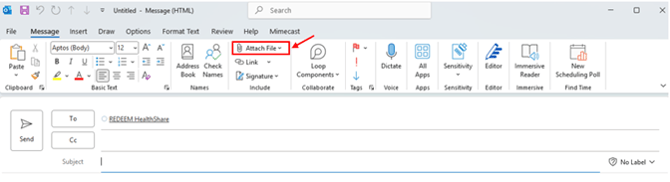
- In the automatically populated email, click Attach File.
- Select the file name you chose for the application form.
- In the automatically populated email, click Attach File.
- Click Send.