
Introduction
If the current case you are managing becomes complex to the point of 1) halting resolution efforts, 2) increasing risk, or 3) increasing impact you will need to change the status of the master ticket to Escalate. This article provides the instruction to change the ticket status in HubSpot.
Changing the status of the master ticket to Escalate will draw additional attention, awareness, and leadership support for increased resolution efforts.
If you are unsure whether you should escalate the case, consult with your supervisor before moving forward.
Procedure
To escalate a current case management ticket, follow these steps:
- In the master ticket, select Ticket status.
- From the options, select Escalate. A prompt for two dependent properties will display.
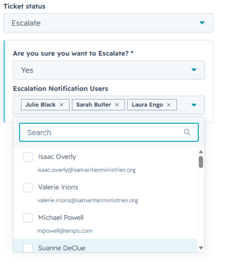
- Complete the escalation prompt fields:
- If you have determined that you must escalate, select Yes.
- Select the users to notify about the escalation. It is best practice to notify your supervisor. You can also include cross-departmental stakeholders.
Important: You are still responsible for facilitating resolution of the case because you are the ticket owner. When you escalate the case, it will send an email notification and link to you (master ticket owner), to others associated to the case, and to those you list in the Escalation Notification Users field.
-
Select Save.
Tips
If you notice that this article needs to be updated, please use the KM Content Submission Form.