
Introduction
As a REDEEM® HealthShare member, when you or a family member might need non-emergency care, you have access to an approved Telehealth provider. Your Annual Unshared Amount (AUA) or any Co-share does not apply for these appointments.
This article will help you understand how to use the Telehealth benefit provided through you REDEEM® HealthShare membership.
Procedure
From the NB Telemedicine dashboard (pictured below), you can add dependents, update your electronic health record, and schedule an appointment. 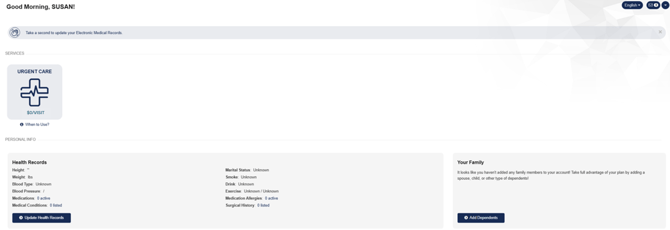
Add Dependents
The NB Telemedicine system automatically added your family members to the membership portal, but if you notice anyone missing from the system, you can add a dependent anytime.
Important: Household members age 18 and older must have an individual email address to use Telehealth through NB Telemedicine. To add emails to your account page, see Access and Update Your Membership Details.
To add a dependent, follow these steps:
- From the dashboard, select Add Dependent. The Account Details screen will open.
- Select +Add A Dependent. The New Dependent screen will open.
- Complete the field options.
- Select Save.
Update Your Electronic Health Record
You can update your health records from two places. The red box around each option indicates the selections so that you can make edits to your records. 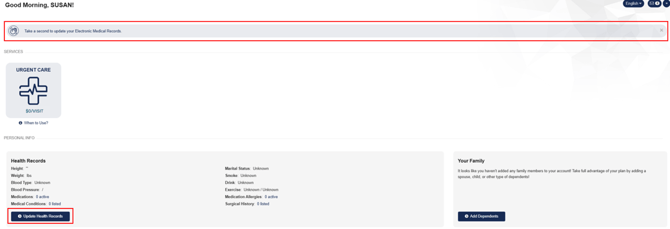
To update your electronic health record, follow these steps:
-
Select either health record updating option (shown above in the red box). The Health Records screen will open.
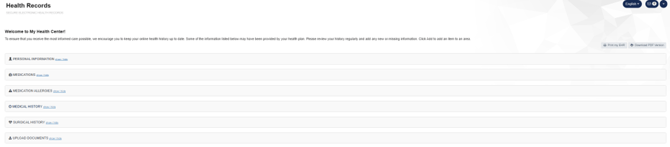
- From the Health Records list, select each option. The screen will expand the edit or add options.
- To type in your information, select Edit or Add.
Note: You can add only one medication at a time. - After each edit or add that you make, select Save. Continue this until you have added all your medications.
- Once complete, you can return to the Dashboard option.
Schedule an Appointment
From the Dashboard, you can schedule an appointment from two places. The red box around each option indicates the selections so that you can schedule an appointment for yourself, your spouse, or a dependent. 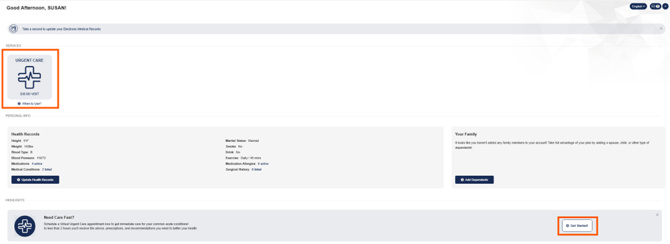
To schedule an appointment, follow these steps:
- Select either scheduling option. The Select Patient screen will open.
- Select the person who needs the appointment.
- Answer each question, and then select Next to continue. Repeat this process until the appointment schedule screen displays.
- Select either Within 2 Hours or Schedule for Later.
Note: If you select to schedule the appointment for a later time and date, a calendar and time range option will open. - Select Next.
- Answer each question and verify and update any necessary information, and then select Next to continue. Repeat this process until the Confirm and Pay screen displays.
- Select Verify Payment Method.
- Select Save & Finish.
Tips
For general member assistance or eligibility-related support call (844) 521-1145.
References
To create an account, see Create a Telehealth Account.
As a member of REDEEM HealthShare Ministry, reading and understanding the Sharing Guidelines is important.