
Introduction
Share Steam is a public posting platform that reinforces community interaction and engagement within the REDEEM® HealthShare community. Share Stream provides an avenue for you to feel connected and supported to other members by asking questions and requesting prayers.
In the Member Center, you can see prayer requests from other members. You can also read general communication and announcements from REDEEM HealthShare Ministry.
Information
When you sign into the Member Center, the Share Stream page automatically displays.
Posting Comments
To post a comment, follow these steps:
- In the General Inquiry box, select Post Type and then select the appropriate communication you want to share.
- In the How can we help section, type your request or question.
- Select Post.
Reading Comments
To read comments on a post, in the bottom left of the specific post box, select Comment. All posts remain active for 12 months. You can view older posts by filtering your stream.
Filtering Posts
To search for a specific post in Share Stream, follow these steps:
- Select the filter
 icon, located to the right of the Care Navigation box. The Search in Share Stream box displays.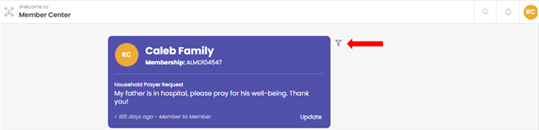
- Type your desired search word or phrase.
- In the Date section, select the drop-down arrow to choose the date range.
- In the Post Types section, select the drop-down arrow to choose the appropriate search term. By hovering in the selection space, you can see a slide bar option of additional search terms.
- When you choose your desired Post Types, select anywhere on the screen, and then select Apply
- To remove your filter, click the filter icon, and then select Reset.
The types of posts included on Share Stream include the following:
- General Inquiry
- Prayer Request
- Care Navigation
- Medical Bills
- Published Needs (Contributor)
- Published Needs (Owner)
- Share Notice
- Public Announcement
- Public Announcement (System Administrator)
- Bill Submission
- Allocation Share Notice
Pinning and Unpinning Posts
A pinned post is a feature available on this platform that allows a specific post to remain at the top of your page.
To pin a post, follow these steps:
- In the upper right side of the post you want to pin, select the
 icon.
icon. - Select Pin.
- (to unpin the post) Repeat steps 1 and 2.
References
For instruction on submitting private prayer requests, updating prayer requests, and submitting public prayer requests, see Submit Prayer Requests.
To view encouragements and continue conversations that you've sent or received, see View and Continue Encouraging Conversations.