
Introduction
If you submitted a medical bill without itemized information and received a request to submit additional information, this article provides step-by-step instructions to complete this request. A medical bill differs from a common receipt.
The healthcare industry often uses multiple terms interchangeably to describe a medical bill such as (not a comprehensive list):
- Superbill
- Itemized statement
- Patient ledger
- Account history
Note: For instruction to submit a new bill (not an update to a recently submitted bill), see Submit a Medical Bill.
Procedure
To submit or upload additional information, such as a super bill or itemized information, follow these steps:
- Log in to the Member Center.
- In the Member Center navigation menu, click Medical Bills.
- Click Monitor Bills.
- From the Member Center page, select Submitted.

- Locate the bill that is missing information.
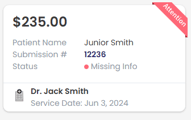
Note: If you have your viewing preference set to List view (image below, left), then in the Status column you will see a red dot indicating the bill needs attention. If you have your view preference set to Tile view (image below, right), you will see a red Attention banner on the upper right of the bill.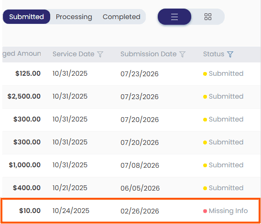
- Select the bill needing attention. A navigation screen, Submission # will open on the right indicating the additional documents you must upload.
- Select Upload additional documents and that screen will open.
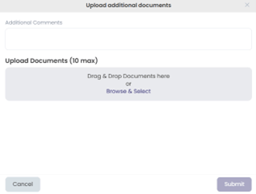
- (optional) In the Additional Comments field. Providing this information might reduce bill processing time.
- Select inside the Upload Documents (10 max) section to complete the request.
- Select Submit. A confirmation banner will appear in the upper right.