
Introduction
The step-by-step information in this article is for submitting your pharmacy bill only. See these other articles to:
Procedure
To submit your pharmacy bill, follow these steps:
- Login to Member Center.
- In the Member Center navigation menu, select Medical Bills.
- Select Submit Bills. The Submit a Bill screen will open.
- Select Pharmacy Bill.
- Complete the required fields.
- Select Next. The Submit a Pharmacy Bill screen displays.
- Complete the required fields and optional fields (providing information in the optional fields might reduce bill processing time).
- Select inside the Drag & Drop Documents here field to upload the bill and any additional documents (disregard the request to upload an itemized bill). Your pharmacy bill must include:
- Name of member/patient
- Fill date
- Drug Name & Dosage
- Quantity received and day supply
- Pharmacy Name & Address
- Prescriber's Name
- Cost of each medication
- Once you upload your bill successfully, select the acknowledgement checkbox.
- Select Next. A prayer request screen will open.
- Type an updated prayer request.
 Important: Do not select Cancel because this will cancel your submission.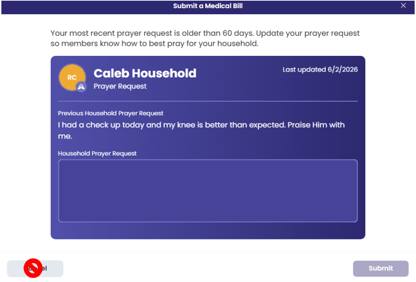
- Select Submit. A confirmation note will appear.